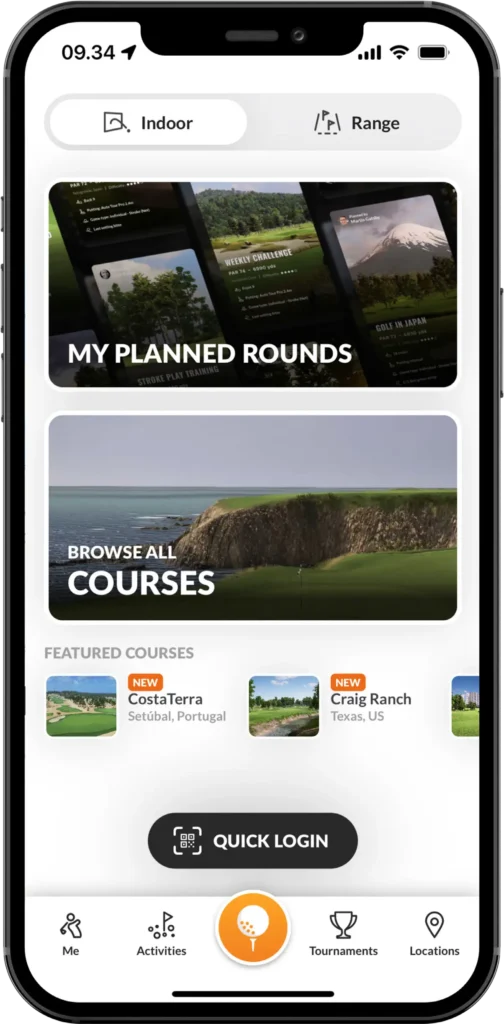
Welcome to Smooth Swings! Our fully automated indoor golf facility is designed to make booking, access, and play simple and convenient. To get started, you’ll need the GolfOS app, which allows you to reserve bays, manage bookings, and unlock the facility directly from your phone.
Follow the steps below to set up your accounts and start enjoying golf on your schedule.
Step 1 – Download the GolfOS App
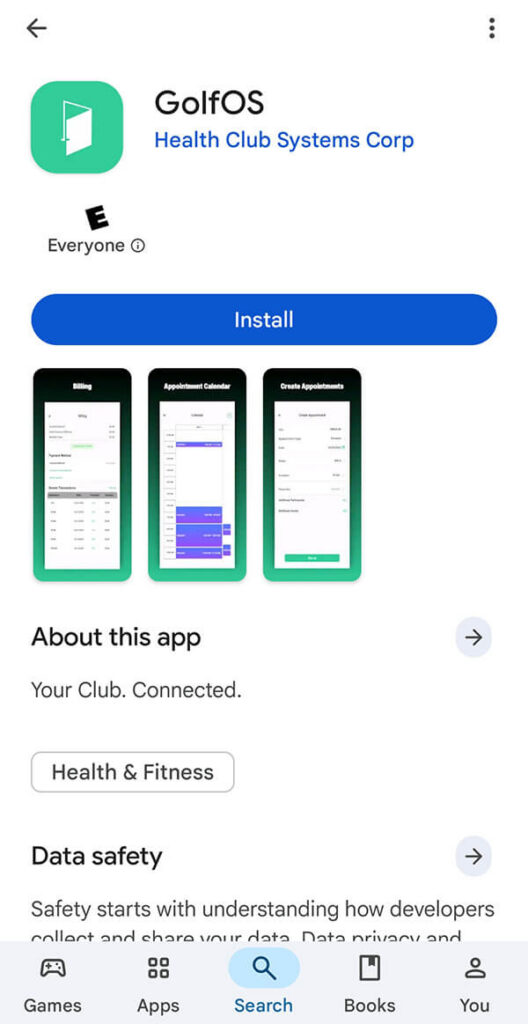
To reserve simulator bays, manage your bookings, and access member features, download the GolfOS App from the Apple App Store or Google Play Store.
You can create a Smooth Swings account with or without a membership. Guest accounts allow you to book bays and access the facility, while memberships include additional perks and benefits.
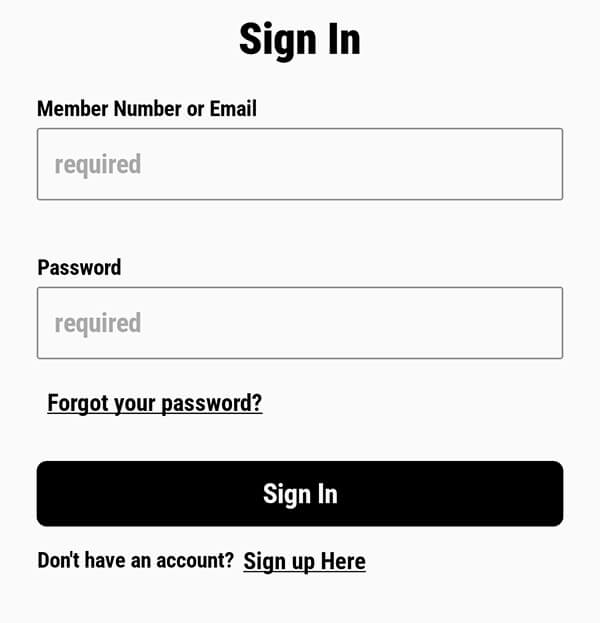
If you sign up for a Smooth Swings membership, your member account is automatically created for you. To log in, use the email address associated with your membership and the temporary password provided in your welcome email. To reset your password, select “Forgot Password” on the login screen and follow the prompts.
Your booking details will be available within the app.
View the bay availability
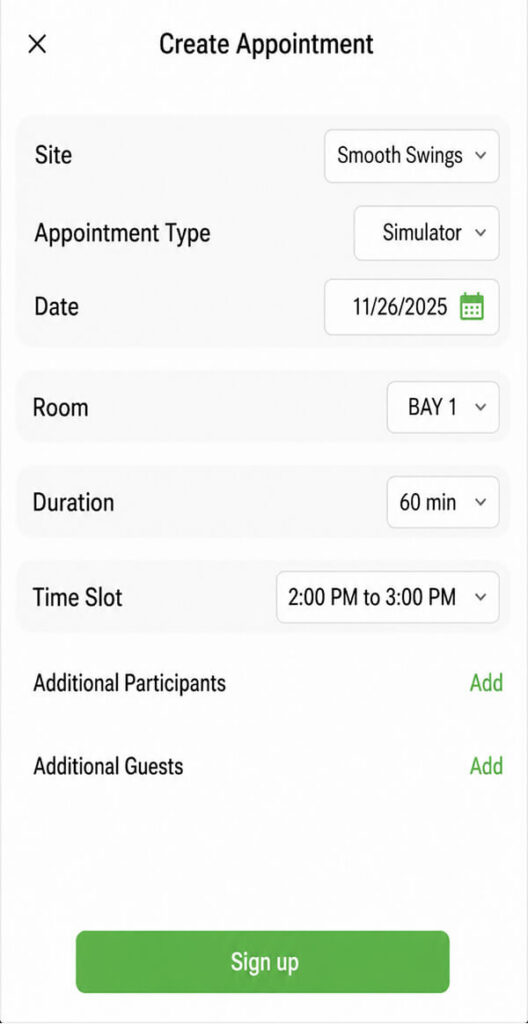
Navigate to the Reservations section of the app and select Calendar View. Browse available bays, dates, and times to find the reservation that works best for your schedule.
Step 4 – Facility Access
Members can use the app to access the facility before their scheduled reservation.
When arriving for your booking:
Open the Smooth Swings app.
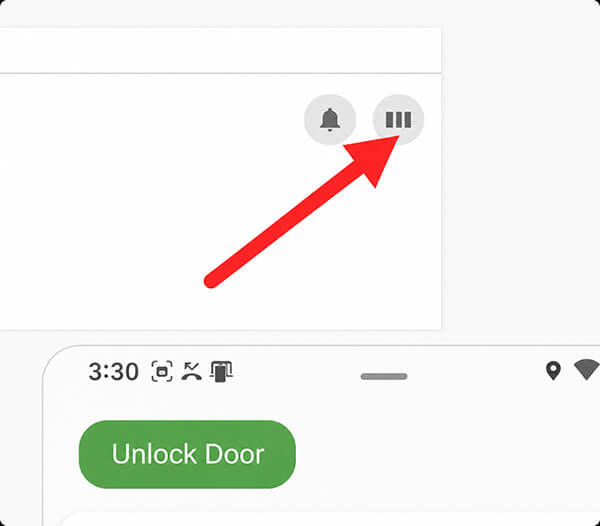
Select the Access Facility option.
Follow the prompts to unlock the entrance door.
Enter and enjoy your session.
Access may be available prior to your reservation time based on your membership level.
Step 5 – Enable Location Services
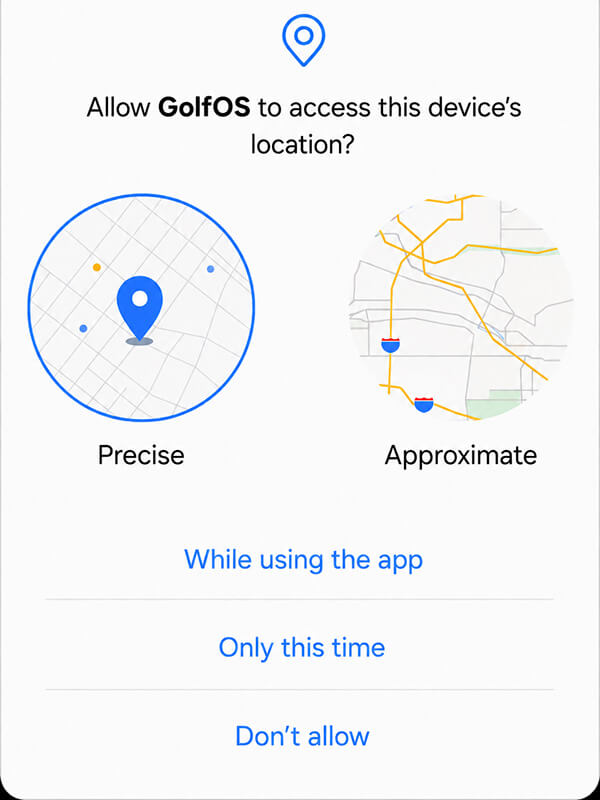
For secure facility access, the app may require location permissions on your device.
When prompted:
Enable Precise Location (if available).
Select Allow While Using the App.
Location access is required for app-enabled entry features. If location services are disabled, facility access through the app may not function properly.
If you experience access issues, check your device settings and ensure location permissions are enabled for the Smooth Swings app.
You’re Ready to Play
Once you’ve downloaded and set up the GolfOS app, you’re ready to book bays, manage reservations, and access the facility directly from your phone.
Thank you for being part of the Smooth Swings community—we look forward to seeing you on the simulator. Enjoy your game! If you have any questions or need assistance, our team is always happy to help.